3 Negative Keyword Moves That Cut Wasted Ad Spend This Week

You can cut wasted PPC spend this week with three moves: build shared negative lists, mine the last 7 to 14 days of search terms, and split negatives by account vs. campaign level. In many B2B SaaS accounts, poor negative keyword coverage can waste 28% to 42% of spend, while tighter control can bring that down to 5% to 12%.
If I wanted the short version, it’s this:
- I’d pull the last 7 to 14 days of search query data
- I’d sort by highest cost and find queries with 0 conversions
- I’d block bad-fit intent like jobs, free, tutorial, and support
- I’d keep account-level negatives for universal junk and campaign-level negatives for campaign-only issues
- I’d check top converters first so I don’t block terms that drive leads
The goal is simple: stop bad clicks before they cost you money. If a query has already spent 1x to 1.5x target CPA with no conversion, it’s often a good place to review first.
Quick Comparison
| Move | What I’d do | Best for | Review pace |
|---|---|---|---|
| Shared negative lists | Group junk intent into lists | Terms that should not trigger across many campaigns | Monthly |
| Search term mining | Add costly zero-conversion queries as negatives | Fast waste cleanup | Weekly |
| Scope split | Separate account-, campaign-, and ad-group negatives | Blocking waste without hurting good traffic | Weekly to monthly |
This article shows how I’d use those three moves to cut waste fast without cutting off traffic I still want.
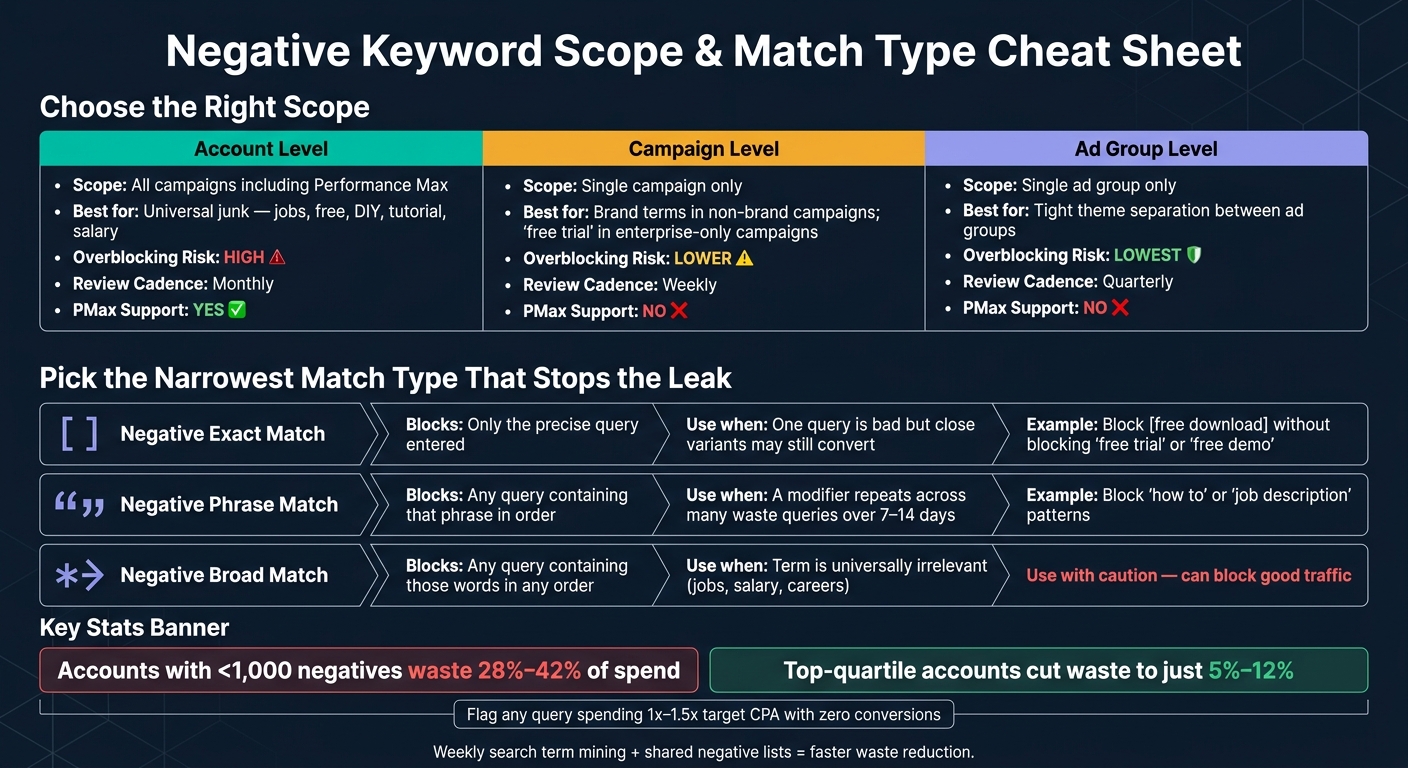
Negative Keyword Scope & Match Type Cheat Sheet for PPC Waste Reduction
Google Ads Negative Keywords Best Practices and Negative Keyword Lists
What Negative Keywords Actually Fix
Negative keywords stop your ads from showing for searches you don’t want. Put simply, they keep irrelevant queries out of the auction.
A low CTR usually means your ad showed up in front of the wrong crowd. Wasted spend usually means the click came from the wrong intent too - like a job seeker, a student looking for a free tool, or a researcher trying to find a tutorial.
"Smart Bidding optimizes bid decisions for queries that enter the auction - it does not prevent irrelevant queries from entering the auction in the first place. That function belongs entirely to negative keywords." - Sean Cooney, Omologist [5]
This is where many accounts spring leaks: the gap between the keyword you target and the search term someone actually types. That problem gets worse with broad match, where Google has more room to interpret intent.
The numbers make the issue hard to ignore. B2B SaaS accounts with fewer than 1,000 negative keywords usually waste 28% to 42% of spend on irrelevant queries. By contrast, top-quartile accounts that keep a close eye on negatives cut that waste to 5% to 12% [5].
The next three moves go after those leaks from three angles: irrelevant intent, low-converting search terms, and negatives placed too broadly.
Before You Make Changes: Pull the Last 7 to 14 Days of Search Query Data
Start by pulling the search terms that are already burning budget. In Google Ads or Microsoft Ads, open Search Terms and look at the last 7 to 14 days [5][2]. That gives you the raw list you need for the next step. If the campaign is new, check search terms every other day during the first two weeks [2].
When the report loads, filter for zero conversions and sort by cost, high to low [2][5]. Your first targets are the highest-cost queries with no conversions. Those are usually the fastest wins.
Then set a clear cutoff for waste. A simple rule: flag any query that has spent 1 to 1.5 times your target CPA without a conversion [5].
After that, tag each query by intent. In SaaS, AI, and lead gen accounts, the same patterns tend to show up again and again:
- jobs/careers
- how-to/tutorials
- free/cheap/coupon
- login/reset/support
Also flag any off-category search, including B2C queries hitting a B2B offer. Then group similar terms by theme. If the same repeated term shows up across many zero-converting queries [5], block it with a phrase-match negative. Those themes will turn into the shared negatives you build next.
1. Build a Shared Negative Keyword List for Irrelevant Intent
Take those themes and turn them into shared negative keyword lists. Then apply each list to every campaign that needs it.
Start with the junk traffic that should never trigger in any campaign:
| Intent Category | Example Terms to Block |
|---|---|
| Free/Discount | free, cheap, coupon, giveaway |
| Employment | jobs, hiring, salary, resume, internship |
| Educational/DIY | how to, tutorial, DIY, course |
| Research/Info | what is, definition, wiki, reddit, quora |
Group these by theme, not in one giant catch-all list. For example, use a "Job Seekers" list, a "Free Intent" list, and an "Educational Queries" list. That way, you can attach only the lists that fit a given campaign instead of dumping every exclusion onto everything.
Once the lists are built, pick the match type with care. Negative broad works well for single-word junk like jobs or free. Negative phrase is better for multi-word terms you want blocked in that exact word order. The catch is simple: if your offer includes one of those blocked words, a broad negative can shut out good traffic too [5][8].
Here’s the cost of getting this wrong. A $5,000/month account that leaks 12% of spend to queries like "free", "jobs", and "DIY" is burning $600 every month. A shared negative list helps push that spend back toward searches that are more likely to convert [2].
2. Mine Search Terms Reports and Add Low-Converting Queries as Negatives
Open Search Terms, sort by cost from high to low, and look for queries that burned through more than $25 with zero conversions in the last 7 to 14 days. The same goes for anything sitting above your target CPA with no conversion at all [2][5]. This should happen every week. It’s not a one-and-done cleanup.
After you mark the obvious budget leaks, use that same report to spot repeat offenders. In SaaS and AI accounts, terms like "login", "forgot password", "API", "SDK", "documentation", "GitHub," and "integration guide" often show weak buying intent when you’re not trying to reach developers. On B2B campaigns, block phrases like "personal use" or "home use" too [10][3].
One warning here: check your top-converting search terms first. You don’t want to block something that’s quietly bringing in sales [6].
Then sort your negatives by where they belong:
- Account-level lists for junk that should never trigger ads anywhere
- Campaign-level negatives for waste tied to one campaign
- Ad group negatives only when you need tighter separation between themes [2][6]
Once you’ve flagged weak queries, split those negatives by scope so you don’t choke off good traffic.
3. Split Account-Level and Campaign-Level Negatives to Block Waste Without Cutting Good Traffic
After you pull search terms and flag waste, the next call is scope. This is where a lot of advertisers slip up. They dump every negative keyword into one giant list, and that’s how good traffic gets blocked by accident.
A safer setup is simple: use account-level negatives for junk that should never trigger any ad, campaign-level negatives for intent that only applies to one campaign, and ad-group negatives only when you need very tight traffic separation. Once scope is set, match type decides how tightly you block the leak without clipping good traffic.
Account-level negatives are your base layer. Put universal junk into shared lists so every campaign inherits the block. Terms like "jobs", "free", "DIY," and "tutorial" should not trigger ads anywhere in the account. Shared lists give every campaign that protection from day one.
Campaign-level negatives are more nuanced. They handle intent that’s wrong in one campaign but fine in another. "Free trial," for example, may fit a self-serve acquisition campaign but be a bad match for an enterprise campaign. Your brand name is another clear example: add it as a phrase-match negative to all non-brand campaigns so brand traffic doesn’t pad non-brand CPA numbers.
Use this quick map to place each negative:
| Level | What Belongs Here | Review Cadence |
|---|---|---|
| Account (Shared List) | Jobs, free, DIY, tutorial, unrelated industries | Monthly |
| Campaign | Brand terms in non-brand campaigns, "free trial" in enterprise-only campaigns | Weekly |
| Ad group | Only for tight theme separation | Quarterly |
Watch for overblocking. If impressions drop by more than 15% week over week while rank loss stays flat, check the shared list first. One negative that’s too broad can cut volume across every campaign at the same time.
After scope is assigned, match type controls how tightly each leak gets blocked.
Quick Reference: Account-Level vs. Campaign-Level Negatives
Use this table when you need a fast way to choose the right scope.
| Feature | Account-Level Negatives | Campaign-Level Negatives |
|---|---|---|
| Scope | All campaigns - including Performance Max | Single campaign only |
| Best Use Case | Universal junk: "jobs", "free", "DIY", "tutorial", "salary" | Campaign-specific exclusions: brand terms in non-brand campaigns, "cheap" in premium-tier campaigns |
| Speed of Setup | Fast - one shared list updates all campaigns | Moderate - each campaign needs its own exclusions |
| Overblocking Risk | High - one broad negative can suppress good traffic across the account | Lower - exclusions stay in one campaign |
| Performance Max Support | Yes - the primary control method for Performance Max | No - PMax does not support standard campaign-level negatives |
| Review Cadence | Monthly | Weekly, during search term audits |
Once you’ve picked the scope, match type determines how tightly each leak gets blocked.
How to Pick the Right Negative Match Type for Each Leak
Once you’ve pulled your search terms, pick the narrowest negative match type that stops the leak.
That’s the safest way to cut waste without choking off traffic that could still turn into leads or sales. Start small. Only go broader when you see the same pattern pop up again and again.
Negative exact match should usually be your first move. Use it when one search query is clearly a bad fit, but close variants or longer searches may still have value. Say [free download] is burning budget and has zero conversions. In that case, block that exact query without also blocking searches like free trial or free demo.
Negative phrase match makes sense when the same modifier or word sequence keeps causing waste across many searches over a 7- to 14-day window. If searches with phrases like “how to” or “job description” keep showing up with zero conversions, a phrase negative can cut off the pattern without forcing you to block every version one by one.
Negative broad match calls for the most care. It can block good traffic if you’re not paying attention. Use broad negatives only for terms that are junk almost every time, like jobs, salary, or careers.
Before you add a phrase or broad negative, check last week’s top-converting queries. If the negative you want to add would have blocked a search term that brought in conversions, don’t add it. Or, if the term still needs action, tighten it down to an exact match first.
| Match Type | What It Blocks | Use It When... |
|---|---|---|
| Negative Exact | Only the precise query | One query is bad, but close variants may still convert |
| Negative Phrase | Any query with that phrase in order | A modifier repeats across many waste queries over 7–14 days |
| Negative Broad | Any query containing those words in any order | The term is universally irrelevant (e.g., "jobs", "salary") |
Next, apply these match types to the query patterns most common in SaaS, AI, and lead gen.
What to Block in SaaS, AI, and Lead Gen Accounts
Start by blocking the terms that burn budget the fastest: job seekers, students, support searches, and free-intent queries.
The match type you picked earlier matters here. Use it to block each group at the right level. When you pull terms from your search terms report, begin with the categories most likely to waste spend first.
Employment and education terms should usually be your first pass. That includes terms like jobs, salary, certification, training, course, and degree. In SaaS and AI accounts, also add open source, GitHub, and source code if you don't sell to developers [7][9].
Here’s a short list that helps cut common waste first:
| Category | Terms to Block |
|---|---|
| Employment | jobs, career, salary, resume, internship, hiring, recruit, glassdoor, indeed |
| Educational | what is, definition, meaning, tutorial, course, certification, degree, university, wiki |
| Support/Navigational | login, sign in, support, help desk, phone number, reset password, documentation, customer service |
| Free/Low Intent | free, open source, free alternative, freemium, crack, torrent, pro bono |
| Asset/Format | PDF, ebook, template, checklist, worksheet, calculator, spreadsheet, sample |
| Market Fit | small business, SMB, startup (for Enterprise); enterprise, corporate (for SMB) |
| Developer Intent | source code, API documentation, Stack Overflow, developer forum, sample code, GitHub |
One big thing to watch: market mismatch is campaign-specific, not account-wide. If you run both an enterprise campaign and an SMB campaign, terms like small business and startup belong as negatives in the enterprise campaign only, not across the whole account. The same goes the other way. If a campaign targets SMB buyers, block enterprise and corporate there so each campaign pulls in the right type of buyer [1][7].
For lead gen accounts, keep an eye on terms like volunteer, pro bono, scholarship, and research paper when they bring in unqualified leads [1][7].
Next, pay close attention to the mistakes that can wipe out these savings.
Mistakes That Wipe Out Your Savings
After you split negative keywords by scope and match type, the big danger shifts. At that point, the main problem is blocking traffic you actually want.
Over-negation is the biggest risk. A negative keyword can cut off converting traffic before you even get a chance to measure it. Why? Because those impressions never happen. The loss is invisible.
The most common reason is using negatives that are too broad. Use negative broad only when a term is irrelevant in every case. For multi-word ideas, go with phrase or exact match instead [4][6][1].
Another common mistake is ignoring campaign differences when adding negatives. Say you block "free trial" at the account level for an enterprise campaign. That might also kill useful self-serve traffic, where "free trial" is a strong buying signal. Account-level lists should be saved for terms that never fit any offer. Use campaign-level negatives when you need to shape intent between campaigns [1][5].
Then there's the mistake people make after a cleanup: they stop. That’s a problem. New irrelevant queries keep showing up, so you need to recheck Search Terms after each negative update. Keep a simple change log too, so you can roll back anything that hurts performance.
A good warning sign: if impression volume drops by more than 15% while impression share lost to rank stays flat, a negative is often too broad. Run that check before every new batch of negatives.
Use this table as a quick gut-check before you push changes:
| Mistake | What It Costs You | Fix |
|---|---|---|
| Broad negatives at account level | Blocks high-intent long-tail queries across all campaigns | Use phrase or exact match; start at the narrowest scope that fits the query [4][6] |
| Ignoring campaign differences | Enterprise and SMB campaigns share negatives that shouldn't overlap | Use campaign-level negatives for intent shaping [1][5] |
| Skipping post-change review | New junk queries surface unnoticed as match behavior shifts | Recheck Search Terms after each negative update [6][2] |
Conclusion
Use these three moves this week to cut wasted clicks fast. This is the shortest path to cleaner traffic.
Build a shared negative list, mine your Search Terms report, and separate account-level from campaign-level negatives. Put them in place now, then check search terms again next week.
Search intent shifts every day. Weekly cleanup helps keep waste down.
FAQs
How many negative keywords are too many?
There’s no single number that means you’ve added too many negatives.
The problem starts when your negative list gets so aggressive that it cuts off eligible traffic and conversions. At that point, Smart Bidding may not get enough data and can stay stuck in the learning phase.
A good rule of thumb is to start with 50–100 account-level negatives as a baseline. In many B2B accounts, 200–500 total negatives is pretty normal.
When should I use phrase negatives instead of exact negatives?
Use phrase negative match when you want to block a repeated phrase or a broader irrelevant intent. It keeps your ad from showing for any search that includes that exact word order, which makes it the better default for most exclusions.
Use negative exact match only for specific, one-off searches when you need tighter control and don't want to block related traffic that could still convert.
How do I find negatives without blocking good leads?
Use the Search terms report, sort by cost, and check the actual queries people typed, not just the keyword that matched them. That’s where wasted spend usually shows up.
Block terms that are clearly off-base. For queries that could go either way, don’t rush to exclude them. Watch them first, or fix the targeting if that makes more sense.
Add negative keywords at the smallest safe level:
- Use shared lists for junk terms you never want anywhere
- Use campaign-level negatives to separate intent
- Use ad group negatives to route traffic to the right place
A good starting point is high-confidence terms like "jobs", "free", "DIY," and "how to." Then check the report every week and keep tightening from there.